
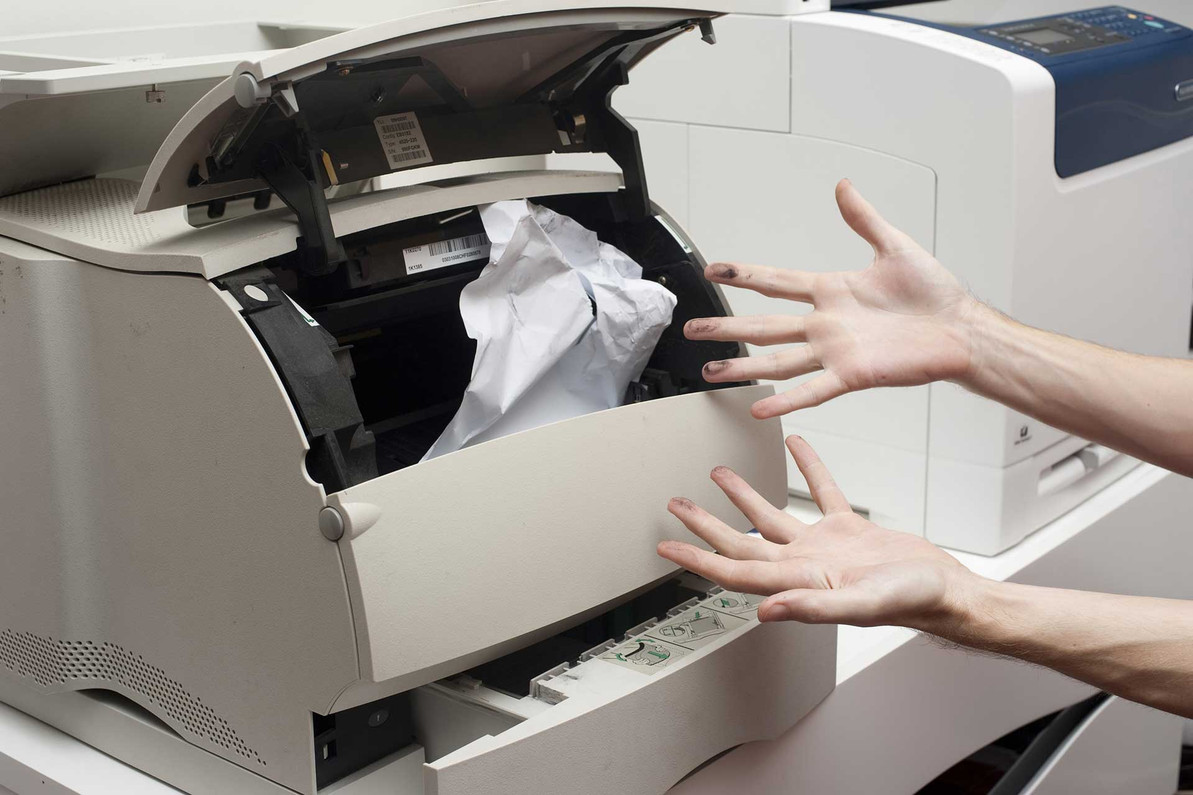
How to fix hp printer paper jam problem
Hp is well-known for its printer and scanner products. High- quality and appropriate performance, as well as price and product diversity of hp products make its users satisfied.
Issues can arise when you are using any kind of printer. Printer paper jam errors is a common problem that can occur. Hp printer paper jam problem happens due to various reasons, below are some common issues and ways to solve them.
Why does Paper Jam in a printer?
The overuse of the printer can make its papers jam. There are several factors which cause to paper jam issue.
• The most common hp printer paper jam problem is the inappropriate positioning of paper.
• The paper tray is one of the most likely parts that can cause a paper jam. You may have filled paper into the input tray that may have exceeded the tray’s capacity. An over filled paper tray can cause paper to tear and the printer to jam.
• Using trays that are not fit for your printer can also cause many problems in your printer’s functions. In order To find the best tray for your printer, visit our
printer's tray.
• Using bad quality paper can also cause printer errors.
• Dirt and dust can build up on printers that are not used often. This can cause errors when printing. Before using printers, it is a good idea to clean and remove any visible dust and dirt build up.
• Envelope feeders are an important part of printers but can also cause the printer to jam papers. Edge guides of the feeder which help load the paper straight sometimes do not fit the paper width. In this case, you need a new envelope feeder. To find the best feeder for your printer, visit our
Envelope Feeder samples.
• Foreign problems inside the printer can also cause a paper jam.
General Troubleshooting
Notice: The below steps are used for most printers but before you start to fix a printer paper jam, learn about its model and function.
1- Clear the paper which has got stuck in the printer. In order to do this, first switch off the printer and remove the power cord.
2- Remove paper output cover, now you should be able see the stuck paper, pull it out carefully.
3- Remove all pieces of paper from printer feeder.
4- Carefully rotate the ink cartridges to make sure that it can move easily without any obstruction
5- Now the printer should be ready to work! Reload the paper into the input tray and switch it on.
In bellow video you can learn more about fixing hp printer paper jam problem.
If you still have problems with your HP printer, contact customer service.
Recent Posts
-
Top 5 LaserJet printers 2020
If you are looking for the best blend of high-quality and low price, take a look at the HP LaserJet …Oct 19th 2020 -
how to disinfect printer and scanner for the corona virus?
Although the novel corona virus outbreak has thrown big players around the world into a stalemate mo …Apr 2nd 2020 -

7 Best HP office jet printer in 2019
An Office jet printer is one of the HP line inkjet printer which is designed for business use. Inkje …Oct 28th 2019